
Elite Dangerous Modding
 | This page is dedicated to modding. Please keep in mind that these mods are NOT run by or affiliated with Frontier Developments or Wikia. |
Modding Elite Dangerous lets you customize the way you experience the game. Frontier does not provide official modding support. The possibilities are limited due to ED being always-online. Most mods are restricted to customize the graphics, user interface and audio. Total conversions are impossible. There are Third Party Tools for additional functionality and Virtual Reality mods.
DLSS 5 in Odyssey

DLSS (Deep Learning Super Sampling) is AI upscaling and image enhancement tech made by Nvidia.[1] DLSS 5 is a real-time Neural Rendering tech that uses generative AI which is infused directly into the graphics pipeline to enhance the lighting and material surfaces closer to photorealism.[1][2] It uses a frame's color and motion-vector data as input to generate temporally stable, more realistic lighting and material effects.[1][2] This generates more realistic graphics with higher level-of-detail. Older games can look like a generational leap with DLSS 5 enabled. The underlying proportions and geometry made by the designers remains the same.[1][2]
DLSS 5 can be enabled in ED: Odyssey with mods.[3] However, ED: Odyssey is not officially supported yet. An official release for ED lets developers select which filters to include and apply on geometry and textures.
Background

This implementation was reverse engineered from the sports game NBA 2K27 in 2026. The mod relies on an early Nvidia DLSS 5 nvgx.dll library that leaked via a test build of NBA 2K27. So this is neither an official Nvidia release version nor was it optimized for space games. It includes filters that are optimized for scenes of NBA 2K27. DLSS 5 is primarily designed for games with Direct X 12, but community mods enable it for older APIs. Elite Dangerous uses DirectX 11 as the primary graphics API. Players use a modified version of ReShade to force the neural rendering framework into the game.[4] The injection tool like DLSS5oneclick can be used to run DLSS 5 features in DirectX 11, DX9, and Vulkan games.[5] If you want to remove this mod you can open the one-click tool and press the remove button.[5] Elite's engine does not expose the native motion vectors required for DLSS to work correctly. The mod uses an extra custom shader (specifically LumeniteFX) to artificially calculate motion vectors from the game's depth buffer and pixel data.[3] The motion vectors are injected into the frame.[5]
Nvidia released DLSS 5 exclusively for NBA 2K27 on 3 September 2026.[6] Many more games will be supported in the future.[6] DLSS 5 is resource intensive and a tradeoff where you can change the settings.[6] When Nvidia has finely turned performance for the RTX 50 series they will add support for RTX 40 series.[7]
Requirements
You should have a high-end PC with a Nvidia RTX 50 or 40 series GPU or higher for decent FPS. RTX 50s have Fifth-Gen Tensor Cores with 4-bit floating point compute (FP4) that are optimized for deep learning and neural rendering.[8] Older series like RTX 40 and 30 do not have specific hardware to support DLSS 5 Neural Rendering. RTX 40 and lower have a big reduction in frames per second.[3]
Older GPUs
An October 2026 update for DLSS 5 added upscaling features.[9] This enables older GPUs (30x series) to use DLSS 5, because the workload is reduced.[9] This is possible via a lower input rendering resolution that is upscaled to the native resolution with little quality loss.[9] Older GPUs handle ultra graphics settings and 2x supersampling.[9] A one-time frame pass reduces the framerate by 5 frames.[9] A two-time frame pass reduces it by 25 FPS. This update also eliminates image flickering.[9] The recommended setting is DLSS 5 set to 33% of the native resolution with one-time frame pass.[9]
Install
Download DLSS 5 Manager by Numidia Studios or DLSS5oneclick by faisalkindi. Follow the instructions on Github or the videos below. The mod must be pointed to the location of the Odyssey exe (not the launcher exe).
Settings

When the installation is complete, go in-game and press the Home key to open the Reshade overlay.[5] Navigate to the tab "RenoDX-DLSSNR".[5] Select "Enable DLSS Neural Rendering". Check the box to "Enable DLSS Neural Rendering."[5] Disable the in-game MSAA or SSAA anti-aliasing to avoid conflicts.[5] You can tweak the sliders and options to see what looks best.[5] To make the character models a[[ (put the facial filter to 25-50%). Press F6 on your keyboard to toggle between DLSS 5 Neural Rendering and the vanilla graphics.
Increase framerate
Increase the framerate by going to the Add-ons tab. Then click on "DLSS 5 Feed" or other version. The menu expands with additional options below. Move the "Work resolution (%)" slider to the left side from 100% to 50%. This will increase the frames per second. Also, in the "RenoDX-DLSSNR" tab you can change the NR Style and other settings to gain FPS.
Aliasing
DLSS 5 uses an AI Neural Network to analyze motion vectors with temporal tracking from past, low-resolution rendered frames (to save power), and depth buffers, jitter offsets to reconstruct pixels and smooth jagged edges. The Tensor Cores use deep learning and AI reconstruction to predict and fill in missing pixels and details along geometry edges. The AI recognizes specific objects and applies semantic masking which improves details without blurring important parts. This removes jagged lines and increases clarity better than temporal anti-aliasing (TAA).

In-game press the Home key to open the Reshade overlay. You can just use DLSS without neural rendering for higher framerates with the best image quality possible.[10]
Videos
Gallery
-
 ED DLSS 5 Concourse and female pilot
 -
 ED DLSS 5 Concourse man
 -
 ED DLSS 5 Python and planet
 -
 ED DLSS 5 Cockpit and planet surface
 -
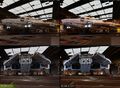 ED DLSS 5 Python in hangar
 -
 ED DLSS 5 Cobra Mk V aliasing comparison
 -
 ED DLSS 5 Caspian Planet
 -
 ED DLSS 5 Nomad Landed Surface
 -
 ED DLSS 5 Caspian Planet Closeup
 -
 ED DLSS 5 Nomad Planet Atmosphere


Multi-Pass DLSS
You can stack multiple neural rendering passes of DLSS 5. This doubles or more the neural shading, and material enhancement per frame. The output frame of the first pass is refed to the AI model or stacked with secondary mod presets to process the lighting and textures again. This pushes the neural network past it's intended single-pass design. The amplified results can be better with cleaner more detailed frames. Or worse with heavily-stylized, over-processed, or uncanny visuals. Multi-pass can reduce visual sharpness and increase blurriness. Multiple passes drastically reduces performance, because the AI workload is doubled or tripled per frame. Note: one Neural Rendering pass is enough for most games.
Requirements
You should have a high-end PC with Nvidia RTX 50 series GPU or higher for a stable, playable framerate with multi-pass enabled. Multi-pass significantly increases power consumption. It can maximize the RTX Tensor Cores with an extreme sustained load. Sustained 95°C+ (203°F) for hours can cause system instability and shorten the CPU's lifespan. The CPU will automatically slow-down or the PC shuts down past the manufacturer's hard limit.
Install
To use Multi-Pass Neural Rendering you must install the addon called Deep Fried Chicken.
- It's recommended to have pre-installed the DLSS5oneclick tool or a RenoDX build.
- If these are installed then you must delete the conflicting files. Locate and delete the "
renodx-dlss6.addon"or "renodx-dlss5.addon64"file from your game folder. You cannot run RenoDX and Deep Fried Chicken simultaneously. - Download the "Deep Fried Chicken" package directly from the author Alexander's community by joining the Discord.
- Copy the Deep Fried Chicken Files: (
deep-fried-chicken.addon64,deep-fried-chicken-nvngx.dll, anddeep-fried-chicken.cfg) directly into your game's main executable directory (where the game's.exefile resides) - Launch ED: Odyssey. Press the Home key to open the ReShade overlay. Navigate to the Add-ons tab, and verify that Deep Fried Chicken is listed and enabled.
Settings
- Open the reshade window and go to the Deep Fried Chicken tab in-game
- Check "Enable Deep Fried Chicken", and check "Arm feature-1 interception on startup".
- Move the slider of "Feeder trust mask: validated, and forwarded." Change it from the default 1 to 2, 3 or more passes.
Recommended is 3 passes to boost the textures, details and intensity. Additional passes causes distorted visual noise, trailing artifacts, and shimmering. The AI model over-processes frame data which compounds motion vector interpretation errors.
Preset 2 Natural Sliders: you can keep these near the default or change them to see what looks better. Auto Mask: On, UI correction: On. There are other settings to change the colors similar to the vanilla graphics.
Texture resolution

You can increase the texture resolution of planets, the galaxy background and the environment map. Note this was tested on 1 November 2018.
If you want to keep things simple you can paste this into your "GraphicsConfigurationOverride.xml" file (normally located in %LocalAppData%\Frontier Developments\Elite Dangerous\Options\Graphics\):[11][12]
 <?xml version="1.0" encoding="UTF-8" ?>
 <GraphicsConfig>
 	<Planets>
 		<Ultra>
 			<TextureSize>4096</TextureSize>
 			<WorkPerFrame>512</WorkPerFrame>
 		</Ultra>
 	</Planets>
 	<GalaxyBackground>
 		<High>
 			<TextureSize>4096</TextureSize>
 		</High>
 	</GalaxyBackground>
 	<Envmap>
 		<High>
 			<TextureSize>1024</TextureSize>
 			<NumMips>10</NumMips>
 		</High>
 	</Envmap>
 </GraphicsConfig>
Note that I recommend against using texture resolutions past 4096 as you will get progressively more noticeable texture pop-in around complex areas like starports, irrespective of how much video memory you have. You can use 8192 or even 16384 for screen shots of planets, but I don't consider them suitable for general play.[11]
For 8GB+ GPU
The following should only be implemented if you have a decent newer card with 8GB+ VRAM - and note my setup is only 2560x1080 with 75hz monitor, RX 6800 card - If you run ED at 4K and are already struggling maybe these will not be any benefit for you. They cause no FPS hits during ship and on foot exploring gameplay and see a huge improvement to the milkyway skybox, planet texture quality and anecdotally see far less terrain LOD morphing on surfaces either on approach or driving/flying low over the surface.[12] These recommendations were made by DisillusionedBook.
In my GraphicsConfigurationOverride.xml file I have these overrides (I also make the same changes in the main GraphicsConfiguration.xml file to the relevant sections (because one or more of the overrides need to be in there -- particularly the GalaxyMap ones I think). Make backup copies named .old of your existing files just in case.[12] I modified these setting to be triggered when the graphics options are set to max (high/ultra depending on the setting).
 <?xml version="1.0" encoding="UTF-8" ?>
 <GraphicsConfig>
   <GalaxyMap>
 	<High>
 		<LocalisationName>$QUALITY_HIGH;</LocalisationName>
 		<NebulasCount>100</NebulasCount>
 		<NebulasInBackgroundCount>100</NebulasInBackgroundCount>
 		<LowResNebulasCount>50</LowResNebulasCount>
 		<HighResNebulasCount>10</HighResNebulasCount>
 		<LowResNebulaDimensions>64</LowResNebulaDimensions>
 		<HighResNebulaDimensions>256</HighResNebulaDimensions>
 		<LowResSamplesCount>276</LowResSamplesCount>
 		<HighResSamplesCount>552</HighResSamplesCount>
 		<MilkyWayInstancesCount>16000</MilkyWayInstancesCount>
 		<LocalDustBrightness>0.05</LocalDustBrightness>
 		<MilkywayInstancesBrightness>1.0</MilkywayInstancesBrightness>
 		<MilkywayInstancesSize>1.0</MilkywayInstancesSize>
 		<MilkyWayInstancesOffscreenRTEnabled>false</MilkyWayInstancesOffscreenRTEnabled>
 		<StarInstanceCount>5000</StarInstanceCount>
 	</High>
   </GalaxyMap>
   <GalaxyBackground>
 	<High>
 	<LocalisationName>$QUALITY_HIGH;</LocalisationName>
 	<TextureSize>4096</TextureSize>
 	</High>
   </GalaxyBackground>
   <Planets>
     <Ultra>
       <LocalisationName>$QUALITY_ULTRA;</LocalisationName>
       <TextureSize>4096</TextureSize>
       <AtmosphereSteps>6</AtmosphereSteps>
       <CloudsEnabled>true</CloudsEnabled>
       <WorkPerFrame>328</WorkPerFrame>
 	  <TexturePoolBudget>100</TexturePoolBudget>
     </Ultra>
   </Planets>
   <Envmap>
 	<High>
 		<LocalisationName>$QUALITY_HIGH;</LocalisationName>
 		<TextureSize>512</TextureSize>
 		<NumMips>16</NumMips>
 	</High>
   </Envmap>
 </GraphicsConfig>
Star count
You can increase the star count (in the sky) from the default 4000 to for example 180000.[13][14]
Before you make changes save a backup copy of the original file. You must change the GraphicsConfigurationOverride.xml located at C:\\Users\\YOUR NAME\\AppData\\Local\\Frontier Developments\\Elite Dangerous\\Options\\Graphics[13]
to for example:[13]
<?xml version="1.0" encoding="UTF-8" ?>

<GraphicsConfig>

<GalaxyMap>

<Low>

<StarInstanceCount>180000</StarInstanceCount>

</Low>

<Medium>

<StarInstanceCount>180000</StarInstanceCount>

</Medium>

<High>

<StarInstanceCount>180000</StarInstanceCount>

</High>

</GalaxyMap>

</GraphicsConfig>
If you use EDHM-UI or EDHM, set the file to read-only or they will erase it. You can do this by right-clicking the file, go to Properties, and tick the box marked Read-only.[14]
Custom Display Quality Settings
The display quality settings can be customized. It appears that values as high as "1.999999" work for "Model Draw Distance"/"LODDistanceScale". Note this was tested on 15 June 2018.[15]
So, my Custom.fxcfg (normally located in "%LocalAppData%\Frontier Developments\Elite Dangerous\Options\Graphics" in your user profile directory), which contains the main display menu settings, looks like this:[15]
 <?xml version="1.0" encoding="UTF-8" ?>
 <Root PresetName="Custom">
 	<BlurEnabled>true</BlurEnabled>
 	<AOQuality>3</AOQuality>
 	<DOFEnabled>0</DOFEnabled>
 	<BloomQuality>2</BloomQuality>
 	<EnvmapQuality>1</EnvmapQuality>
 	<MaterialQuality>3</MaterialQuality>
 	<EnvironmentQuality>3</EnvironmentQuality>
 	<FXQuality>3</FXQuality>
 	<GalaxyMapQuality>2</GalaxyMapQuality>
 	<GUIColourQuality>0</GUIColourQuality>
 	<TerrainQuality>3</TerrainQuality>
 	<TerrainLodBlendingQuality>2</TerrainLodBlendingQuality>
 	<SurfaceMaterialQuality>3</SurfaceMaterialQuality>
 	<JetConeQuality>3</JetConeQuality>
 	<VolumetricsQuality>3</VolumetricsQuality>
 	<ShadowQuality>4</ShadowQuality>
 	<TextureQualityEx>2</TextureQualityEx>
 	<AAMode>4</AAMode>
 	<SurfaceSamplerQuality>3</SurfaceSamplerQuality>
 	<PerformanceQualitySetting>0</PerformanceQualitySetting>
 	<ResolutionSetting>0</ResolutionSetting>
 	<LODDistanceScale>1.999999</LODDistanceScale>
 	<HMDRenderTargetMultiplier>1.000000</HMDRenderTargetMultiplier>
 	<SSAAMultiplier>1.000000</SSAAMultiplier>
 	<GpuSchedulerMultiplier>1.000000</GpuSchedulerMultiplier>
 </Root>
This is essentially the "Ultra" preset with DOF (which is normally only used in the camera modes, but eats quite a bit of performance for an effect I don't like) disabled, the GPU terrain work slider maxed out (despite what the description states, I've only seen performance and smoothness improvements from increasing this to maximum on any upper end GPU hardware of the last several years, going back to at least my Radeon HD 290 and GeForce GTX 780), and the custom "LODDistanceScale" increase, which must be manually entered into this file, because the in-game slider maxes out at "1.000000".[15]
Ultra+ terrain quality
In ED: Odyssey 4.1 you could set the "terrain quality" to "ULTRAFORCAPTURE". This increases the terrain level of detail and lighting beyond ultra. Odyssey - Update 6 renamed the "terrain quality" setting to "Ultra+" on July 29, 2021.[16]


EDVR - Flat (desktop) edition for anti-aliasing
EDVR - Flat by Riken aims to banish the shimmers and jaggies with DLSS 4.5/FSR 3.1 on non VR screens.[17][18] You can report bugs and issues on GitHub and discord.[17][18]
Install
- Download the installer (latest release version)
- Check the ReadMe.txt for Flat (3D Off Mode) of EDVR.
Settings
- After running the installer, launch the game and disable in-game anti-aliasing.
- Open the mod menu using the default F8 key.
- You can select DLAA, FSR, and TAA. DLAA and FSR give the best results.[18]
- DLSS Models are available to configure to your preference, K is the most performant.
- To enable upscaling for flat screen set supersampling at lower than 1.0.[18]
- If your display has G-Sync or FreeSync it can hide dips in FPS.[18]
If you have a Nvidia 3080 RTX or lower there's a bit reduction of FPS. This is less noticeable with a 40x or 50x GPU.
Nvidia anti-aliasing
ED doesn't currently have proper in-game anti-aliasing options. However, it can be improved with the following methods:
Nvidia DLSS 5
DLSS 5 is recommended, because the AI Neural Network and temporal data tracking from past frames smooths out jagged edges a lot.
Nvidia DLAA
You can use DLAA (Deep Learning Anti-Aliasing) and run ED at a higher base resolution.[3] DLAA is an option in the NVIDIA App (NVIDIA Control Panel). The 5090 is fast enough to get a decent framerate.[3] That is the best balance and it helps considerably although there is still some aliasing.[3] You can re-sharpen the visuals with reshade shaders.
Nvidia DLDSR
This easy method drastically improves Odyssey's poor anti-aliasing. This method only works if you have an Nvidia RTX graphics card. If you do, follow these steps:
- Find and open the program NVIDIA Control Panel
- Go to 3D settings and "Manage 3D settings"
- There, under DSR - factors set 1.758x DL, and under DSR - smoothening set 80%
- Click apply, and exit the program
- In-game, set your resolution to the now enabled higher than your native one, and turn off the antialiasing option completely.
Doing this should grant you noticeably cleaner and better aliased picture while not lowering the performance by any measurable margin. See the video for examples. The video compares "Native resolution and in-game SMAA" versus "1.78x DLDSR and no in-game Antialiasing"
EDAA mod (Elite Dangerous Anti-Aliasing)
Temporal Anti-Aliasing (TAA) for ED: Odyssey, as a ReShade add-on.[19] This is a community made mod. TAA is Sub-pixel jitter and motion vectors rebuilt from the game's own camera and depth: stable edges, no ghosting when you turn, fly, drive or walk.[19] The TAA runs inside the game's frame, before the HUD, bloom and tonemapping.[19] Your HUD stays sharp, maps and high-res screenshots are left untouched.[19]
Good to know
- Requires Elite Dangerous Odyssey (DirectX 11) and ReShade 6.8+ with full add-on support.[19]
- NVIDIA DLAA (optional) needs an NVIDIA RTX GPU; Intel XeSS (optional) runs on recent GPUs of any brand; EDAA's own TAA works everywhere.[19]
- Settings are saved in ReShade.ini; "Reset to defaults" restores them.[19]
- Uninstall from Windows Settings > Apps > EDAA (ReShade stays).[19]
Install
You can download the EDAA mod here. Run the install file "EDAA-Setup-x.y.z.exe." Disable the in-game anti-aliasing in the graphics options, because EDAA replaces it. TAA is on by default. "Ctrl+Shift+T" toggles it. The "Home" button opens the ReShade overlay (tab "EDAA") for status and settings.[19]
ED HUD Mod

The HUD mod enables precise re-colouring of each HUD element, without the need to alter the XML. In doing so, we avoid the unintended XML side-effects on radar icons and pilot portraits. But it also means we can re-colour any HUD element, and we're not locked into a particular palette.[20]
We've also enabled coloured lighting effects in the cabin. The ambient light really changes the 'mood' of the pilot's environment, and you can even have multi-coloured lighting if you prefer.[20]
Lastly, some ships have lights on the dashboard or canopy that shine directly in your face. So we dimmed them down to reduce eye fatigue and make flying a more pleasant experience.[20]
The mod is based on software called 3dmigoto, which was introduced into the Elite community by CMDR AD in Feb 2019. He used 3dmigoto to turn off particular shaders, such as scratches on the windows, space dust and smoke in the cabin.[20]
- You can download and install the EDHM + UI here:
- The mod is also available bundled with the official UI, available at this link:
- Related mod:
ReShade

- Note the following mods could be outdated due to the lighting improvements of Beyond Chapter Four.
ReShade is an advanced, fully generic post-processing injector for games and video software developed by crosire. Imagine your favorite game with ambient occlusion, real depth of field effects, color correction and more ... ReShade exposes an automated and generic way to access both frame color and depth information (latter is automatically disabled during multiplayer to prevent exploitation) and all the tools to make it happen.[21]
Presets
- EDFX (by SkyPat) - EDFX add FX graphics effects to games using ReShade Shader Framework and manage Hud color.[22] It's a premade Reshade profile with its own launcher and some other options.
- ICO_hr's preset - 3 versions of the same preset: ReShade, SweetFX and GemFX
- Rob Viguurs's preset - The idea of this Reshade was to make it having a fresh look with a tint for real color tones and sharpness. The biggest effect with this is that the yellow washed out screen is gone.
- RootsExplo (by rootsrat) - This ReShade preset gives Elite a more cinematic look, with better colours and sharpened image, however without exaggeration.
- Dark/Colourful Reshade preset (by Son of the Desert ) - This preset makes the game a lot darker and more colourful and adds a glare effect which might be annoying to some people. You can disable it in the settings under bloom-> glarez.
For installing be careful to always follow the instructions of the preset.
Graphic Tweaks, Dreamscape Feeling & alii

If you don't feel like using an injector like ReShade or SweetFX or EDFX, there's a few tweaks you can do to visually improve your game.[23]. Such as Dreamscape Feeling using Bloom, Dust Clouds and Galaxy Background by TheRealPhyzz, Dust Clouds & Background Nebulae, Nebula Textures by Ozric and Moar Stars In Da Skybox. See this thread for instructions.
- Note: do this at your own risk and always make a backup of the GraphicsConfigurationOverride.xml file. If you're unsure what to do, don't try it.
The GraphicsConfigurationOverride.xml file is in %LocalAppData%\Frontier Developments\Elite Dangerous\Options\Graphics. Remove it, copy the original GraphicsConfiguration.xml there, rename it GraphicsConfigurationOverride.xml. Tweak there. Beware that some tweaks don't work with the Override (galaxy background for example).
Skybox and nebula detail
Elite Dangerous can be forced to render the skybox in much more detail, including nebulae, at the small cost of some stuttering in witchspace. Success also depends on the PC's capabilities.[24] The process is as follows:
- Find the GraphicsConfigurationOverride.xml file (copy and paste this on the address bar of any folder to find it: "%LocalAppData%\Frontier Developments\Elite Dangerous\Options\Graphics"). The GraphicsConfigurationOverride file is a disposable xml that can be used to safely edit the game's parameters without disrupting the GraphicsConfiguration file. Do undo any changes, delete the GraphicsConfigurationOverride file and the game will generate a new, blank one the next time it is loaded.
- Open GraphicsConfigurationOverride.xml and replace it with this, which changes three values: <TextureSize>4096</TextureSize> (under the <GalaxyBackground> header), <LowResNebulasCount>25</LowResNebulasCount> (under the <GalaxyMap> header, determines how many low-res nebulae can be rendered in the skybox simultaneously), and <HighResNebulasCount>10</HighResNebulasCount> (also under <GalaxyMap>, does the same for high-res nebulae). Notice that these parameters repeat themselves for every quality setting, so all instances of those parameters must be changed to ensure the change goes through in any quality setting.
To verify the change is successful, then before implementing the change, take a screenshot of the Milky Way or a nebula and then immediately exit the game. Once the xml file has been edited, take a second screenshot immediately after logging back into the game. Both screenshots will have been taken from the exact same position with the exact same view of the skybox, allowing a direct comparison to be made.
Again, if there are any problems, delete the GraphicsConfigurationOverride file. Note that there are no apparent visual improvements if the TextureSize is set to a value higher than 4096, and doing so may only worsen the game's stuttering.
Credits to u/cmdrtavenner from this post
Graphics override example
Created by StrixLVG aka LCARS and shared by Numenor1379.
Elite Dangerous allows you to run custom graphics settings that can increase the maximum graphics settings and correct some things. I made an GraphicsConfigurationOverride XML file which changes the following:
- More stars rendered at once. You have 3 options (32.000, 64000 & 128000).
- Increases the planet texture resolution on the ultra setting to 4096x4096.
- Increases skybox texture resolution (Galaxy Background) to 1024x1024, 2048x2048 & 4096x4096 on Low, Medium and High settings respectively.
- Sets the correct Environment Ultra settings.
- Reduces the skybox dust visuals.
- Increases the amount of nebulas that can be shown on screen at the same time.
- Enhances Ultra Shadows to higher resolution and less issues.
Link: https://pastebin.com/QmifRmSC
The XML file should be placed in the following directory to install: C:\Users\YOUR USERNAME*\AppData\Local\Frontier Developments\Elite Dangerous\Options\Graphics
The username is whatever you have set it to be.
These settings are meant for people running the game with (near) max settings. For best results, run the game at max settings.
To the right of each setting value you can find the default value set by FDev to see the changes made. Popular settings:
- StarInstanceCount: Maximum number of stars in your instance. A higher number shows more stars in your skybox.
- LocalDustBrightness: The amount of dust you can see in the instance skybox. A value of -0.1 completely disables the dust. A non negative value increases the intensity of the dust.
- NebulasCount: The amount of nebulas you can see at once in your instance and the galaxy map.
- Planets -> TextureSize: The texture quality of the planets. A higher number means higher detailed planets.
- GalaxyBackground -> TextureSize: Resolution of your skybox. A higher texture size is higher clarity.
See also
- Nexus Mods hosts a few free community made mods for ED. Check if they're not outdated before using.
- EliteDangerousDevs - Subreddit for tools and mods
Videos
Gallery
-
 ED HUD Mod
 -
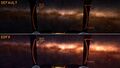 EDFX graphics mod
 -
 ReShade comparison
 -
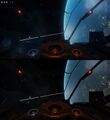 GemFX comparison
 -
 SweetFX comparison
 -
 ED higher resolution planet textures


References
- ↑ 1.0 1.1 1.2 1.3 DLSS 5 | Introducing 3D-Guided Neural Rendering - 1 Sep 2026 - YouTube
- ↑ 2.0 2.1 2.2 NVIDIA DLSS 5 Available Now: 3D-Guided Neural Rendering Debuts In NBA 2K27 For All GeForce RTX 50 Series GPUs, And On GeForce NOW - Henry Lin - 1 September 2026
- ↑ 3.0 3.1 3.2 3.3 3.4 3.5 DLSS 5 in Elite Dangerous : Odyssey - de_richleau - 31 August 2026
- ↑ How to Enable DLSS 5 in ANY Game With Just ONE Mod - Circuit Score Gaming - 31 Augustus 2026
- ↑ 5.0 5.1 5.2 5.3 5.4 5.5 5.6 5.7 How to Install DLSS 5 in ANY Game (1-Click Setup for RTX 30, 40 & 50 Series!) - MK GAMES - YouTube - 1 Sep 2026
- ↑ 6.0 6.1 6.2 Nvidia DLSS 5: Everything You Need To Know - 4 Sep 2026 - Corsair
- ↑ NVIDIA Confirms DLSS 5 Support Extends To RTX 40 GPUs, But First Focusing On Model Optimization on RTX 50 Series - WCCF Tech - 3 Sep 2026
- ↑ NVIDIA TensorRT Unlocks FP4 Image Generation for NVIDIA Blackwell GeForce RTX 50 Series GPUs - 14 May 2025
- ↑ 9.0 9.1 9.2 9.3 9.4 9.5 9.6 DLSS 5 Big News - Upscaling Update and More - Elite Dangerous Odyssey - Juseppe’s World - YouTube - 10 Oct 2026
- ↑ There is now DLSS/DLAA/FG and DLSS 5 in Elite thanks to modders - duffbeeeer - Reddit - 5 Sep 2026
- ↑ 11.0 11.1 https://forums.frontier.co.uk/threads/Graphics-settings-Beyond-Ultra.454153/#post-7126253
- ↑ 12.0 12.1 12.2 If you have a recent 8GB+ GPU - Some older graphics quality tweaks work great in Odyssey
- ↑ 13.0 13.1 13.2 Sky is a lot prettier with 180k stars visible instead of the default 4k! Exobio has never looked prettier! Also no issues at all with fps or witchspace loading time or anything else after changing star count! - 15 September 2026 - Lordofwar13799731 - Reddit
- ↑ 14.0 14.1 Star instance count config works again! (check comments for more info) - 15 Feb 2022 - _Coldey_
- ↑ 15.0 15.1 15.2 https://forums.frontier.co.uk/threads/Custom-Elite-Dangerous-display-quality-settings-continued.433024
- ↑ Elite Dangerous: Odyssey Update 6
- ↑ 17.0 17.1 17.2 ED(Not VR) Unofficial Patch - DLSS 4.5/FSR 3.1 - Ok-Mud-9379 - 25 Sep 2026 - Reddit
- ↑ 18.0 18.1 18.2 18.3 18.4 18.5 Anti-aliasing fix "flat screen" with EDVR 0.18.0 - Elite Dangerous Reddit - 2 oktober 2026
- ↑ 19.0 19.1 19.2 19.3 19.4 19.5 19.6 19.7 19.8 Elite Dangerous Anti-Aliasing - EDAA - 27 October 2026
- ↑ 20.0 20.1 20.2 20.3 https://www.reddit.com/r/EliteDangerous/comments/iu4mbj/elite_dangerous_hud_mod_edhm_custom_huds_without/
- ↑ ReShade
- ↑ EDFX
- ↑ Graphic Tweaks, Dreamscape Feeling & alii
- ↑ PSA for PC players: you can make the skybox way more detailed - including multiple simultaneous nebulae - with simple tweaks in GraphicsConfigurationOverride.xml (details in comments) - cmdrtavenner - Reddit - 25 Dec 2018