

Pilots Guide

This guide is designed to help new and experienced pilots utilize their spaceship. The Sidewinder is used as an example, but the concepts are applicable to all ships in Elite Dangerous. The Careers page has an overview of pursuable vocations.
Codex

The Codex shows information and stats of your findings, progress, session logs and a curated archive of your discoveries.
The Homepage has the most important stats with a full body image of your Commander. You can customize the appearance with Holo-Me.
The Discoveries section shows 42 galactic regions with things that players found and things that aren't discovered yet. For example within a star system there are stars, planets, terrestrials, gas giants, species, settlements, generation ships, text and audio logs etc.
The Knowledge Base has encyclopedia-style lore topics about e.g. historical events, important characters, factions and alien species.
The Pilot's Handbook has detailed information about possible activities, ship outfitting and more. There's also a news feed.
1st and 3rd person
ED is primarily designed as a first-person experience. By default you fly your ship in 1st person from the pilot seat. There is native support for keyboard & mouse, standard gamepads (like Xbox and PlayStation controllers), and dedicated flight peripherals including HOTAS, dual sticks, and rudder pedals. You can switch to 3rd person by activating the Camera Suite:
- Activate Camera Suite: Press
Left Ctrl + Left Alt + Spaceon PC (or holdBand pressRight on the D-Padon Xbox / holdSquareand pressRight on the D-Padon PlayStation). - Switch to Chase Cam: cycle to the external view and adjust the camera behind your ship using your key bindings.
- Enable Flight Controls: you can steer, boost, and fire weapons while in the external view, but there is no cockpit HUD.
You can map a dedicated "Enter Camera Suite" key in the Options > Controls menu. Once active, select one of the preset external camera views.
On Foot is also designed for first-person view. The camera suite provides a 3rd person, cinematic view of your character and surroundings. However, your Heads-Up Display (HUD) and crosshairs disappear. You cannot complete combat nor interact with objects while using the external camera view.
Virtual reality
ED supports virtual reality (VR) inside ships and vehicles. You can freely look around the cockpit, view ship panels, and navigate space. This includes cockpit-based activities, planetary driving (SRVs), and the galaxy map. However, on-foot gameplay has a flat 2D screen projected inside your headset. There are a few graphics settings to improve the graphics, performance and on-foot VR.
Guides
New pilots should check the following guides. Note: some guides may have outdated information.
- Elite: Dangerous Pilot Training Tutorials
- Elite Dangerous: Horizons Training Guides
- Official Players Guide (latest version), other languages
- The Guide for Almost Everything
- Forger's "Elite Pilots Guide"
- Technophebe's "Harmless' Guide to the Galaxy"
- Elite Dangerous – a comprehensive beginner's guide
- Blazing your own trail in Elite: Dangerous: profession overview overview and insightful starting information for each profession.
- A visual guide to exploration
- Odyssey Guide
- Squadrons Guide


Support squadron
- New Pilots Initiative is a squadron that supports new pilots and develops their chosen career
Support issues
For support issues check the following places before submitting a ticket:
- Official FAQ
- Official game support forum
- Official customer support
- Technical support
- The Galactic Academy is a portal for new and inexperienced Commanders to get help and support.
Epic Games version support guides:
Pilot training
These videos outline the basics of Elite Dangerous for new players.
Fan-Made video guides
Lore videos
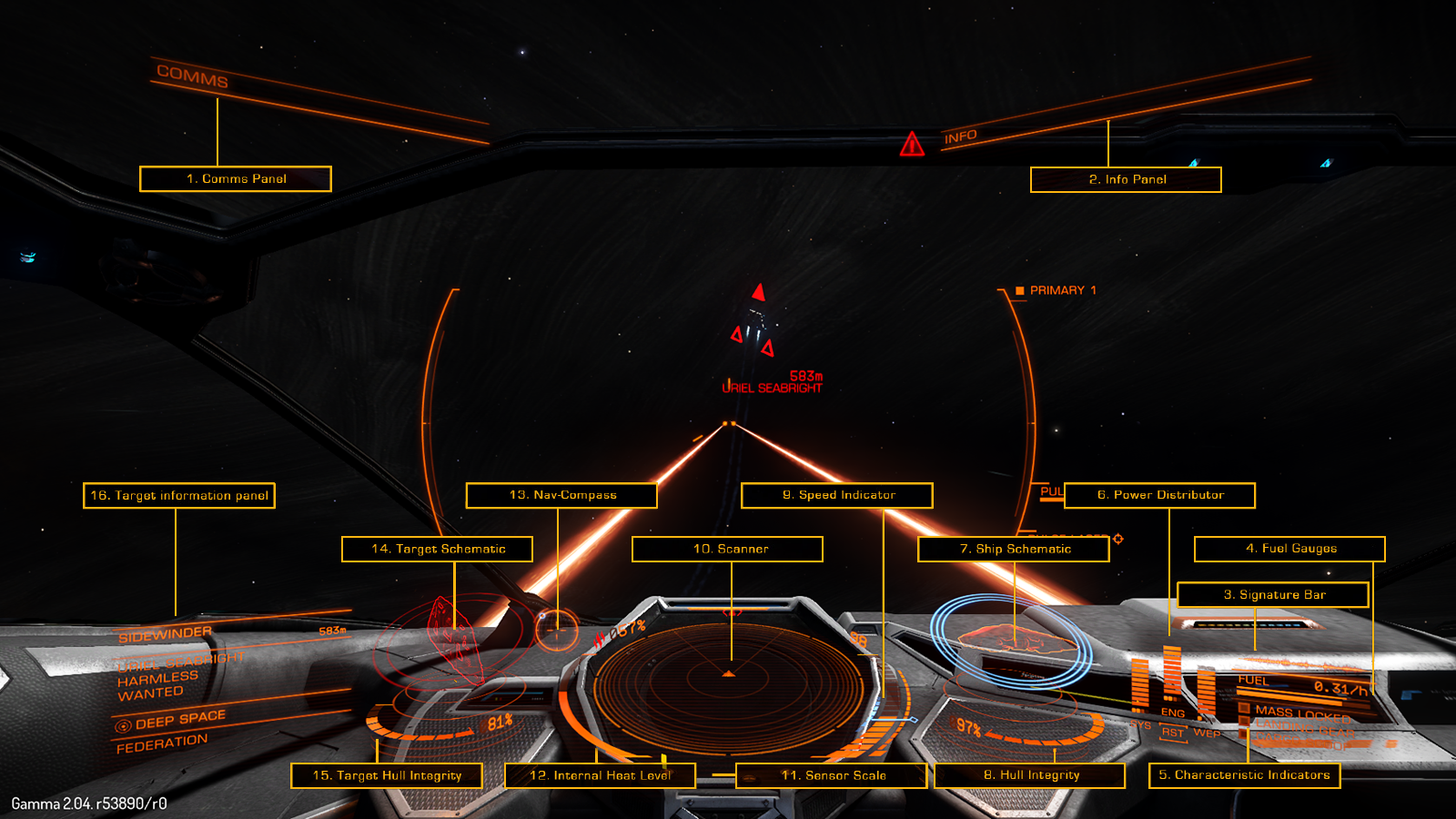
Ship HUD
The HUD, also known as a "head-up display" or "heads-up display", is how all information inside of a ship is displayed in Elite Dangerous. <tabview> HUD/Center|Ship: Center HUD/Right|Ship: Right HUD/Left|Ship: Left HUD/Down|Ship: Down HUD/Odyssey|On foot (Odyssey) </tabview>
Gallery
- Cobra cockpit interface
- Sidewinder cockpit interface
- Planetary Flight HUD


Third Party Tools
ED has a steep learning curve and does not hold your hand, save for a few in-game tutorials. You can learn to use 3rd party tools and websites to make the gaming experience more enjoyable and easier.
The Elite: Dangerous Codex has a complete list of Third Party Tools. You can bookmark it, and use tools that you find useful. There are dozens of websites about ED worth bookmarking. Check the Fansites for a list of related sites, tools, data and guides.
The game utilizes an API that allows all in-game data to flow to multiple websites, tools, and utilities so all real time in-game data can be presented in many different ways. For example, the Inara website helps players to search nearest, stations, minor factions, bodies, profitable trade routes, commodity prices, engineer component trading, the nearest ships, modules and personal equipment vendors. By registering at these sites and tools with your personal game API they can track your entire history and game data.
ED also creates log files every time you play. These tools can pull that data in various ways to give you a detailed log of everywhere you go, buy and sell, and other player actions.
Recommended Guides
A list of recommended guides to learn more about piloting and traversing space.